The biggest BYOD security risks are personal laptops that hold company logins but lack patches or encryption, VPNs that open the whole network to them, unclear privacy limits, and company data left behind when a device is lost or its owner leaves. You can control each one by checking device health at every sign-in, granting access one app at a time, publishing what you monitor and agreeing in advance how data is removed.
What are the biggest security risks of BYOD?
The biggest risk is a device you can’t see that still holds valid company credentials. The other risks follow from that.
Verizon’s 2025 Data Breach Investigations Report looked at systems infected by infostealer malware. Of the compromised systems carrying corporate logins, 46% were non-managed devices that held both personal and business credentials. By comparison, 30% were enterprise-licensed machines.
| Risk | What it looks like | Control that addresses it |
|---|---|---|
| Credential theft | Infostealer on a family laptop captures work sessions | Per-app access tied to sign-in and device health |
| Poor posture | Disk not encrypted, OS updates months behind, no screen lock | Posture checks before access, not after |
| Over-broad access | VPN puts a personal device on the internal network | Zero-trust access to named apps only |
| Privacy overreach | Staff refuse or remove the agent because they don’t know what it reads | A published, readable list of what’s collected |
| Data left behind | Lost laptop, or a leaver keeps synced files | Agreed lock and erase rules, with approval |
| Unknown software | Risky extensions, unlicensed apps, AI tools | An inventory taken from the device |
Why do VPNs make BYOD riskier for internal apps?
A VPN gives a personal device a route into your network, when it only needs one app.
CISA and the NSA describe remote-access VPN servers as “entry points vulnerable to exploitation”. They say a compromised VPN can lead to credential harvesting, remote code execution and hijacked sessions. Attackers are acting on this. The 2025 DBIR found that edge devices and VPNs went from 3% to 22% of breaches involving vulnerability exploitation, an increase of almost eight times.
With BYOD you add a second problem: the device at the other end of the tunnel is one you don’t manage. Once connected, it can reach whatever the network allows.
The alternative is to publish each internal app on its own and decide access per request. ilane Private Access works this way. People open internal apps only from their own laptop, signed in as themselves, and only while that laptop passes your checks. Nothing joins your network.
How do you check a personal device’s health before granting access?
Check the device at the moment it asks for access, against a short list of conditions, and refuse if a condition fails.
NIST SP 800-207 describes this model. Access is granted per session, decided by dynamic policy, and the organisation monitors the security posture of every asset. For a personal laptop, a workable minimum is:
- Disk encryption is on (FileVault, BitLocker or LUKS).
- Firewall is on.
- Screen lock is set to a short timeout.
- OS updates are no more than a set number of days overdue.
- No critical or high known vulnerabilities in installed software.
- No blocked browser extensions or apps.
Keep the list short. Each extra rule means more support tickets from people using their own hardware.

In ilane, one light agent runs on Mac, Windows and Linux and comes with 42 checks. Each failing check opens one ticket for one owner. The ticket closes only when the device’s next report is clean. You can switch off any check or exempt a device, which helps when a personal machine has a good reason to differ.
What should IT see on a personal laptop, and what should it never collect?
IT should see the security settings that decide access. It should never see the person’s private life.
Reasonable to collect: device model, OS version, last check-in, encryption, firewall and screen-lock status, missing patches, risky browser extensions and installed software.
Should be off limits: file contents, browsing history, messages, photos, keystrokes, location, and any screen viewing the person hasn’t approved.
Put the boundary in writing and make it easy to check. ilane publishes the full list of checks to every employee inside the product, and keeps a public page on what the device agent collects and what it never collects. Each company can switch whole areas of collection off.
Two more defaults matter on a personal device:
- Fixes start off. Automatic fixes are off for every company until an admin turns them on. On personal laptops you might leave them off and only use checks to decide access.
- Remote help needs consent every time. IT can see a laptop screen only after the person taps Allow. Unattended access exists only on servers you choose.
What happens to company data when a personal device is lost or someone leaves?
Cut off access first. Remove data second, and only under rules the employee agreed to beforehand.
When a device is lost, revoke its sessions and sign-in so internal apps stop opening on it. Whether you lock or erase it depends on how much company data sits on the disk. The less data you allow to sync locally, the less a wipe matters.
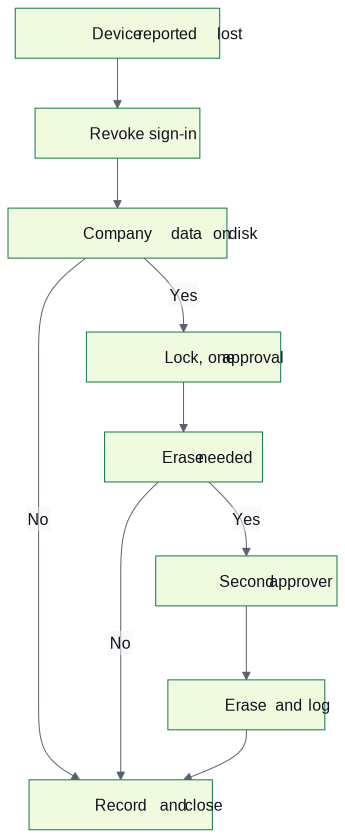
Erasing someone’s own laptop is serious, so make sure no single admin can do it alone. In ilane, locking a lost laptop takes one approval. Erasing it needs a second person. Every step goes into an audit log that can’t be edited.
When someone leaves, the checklist differs from company laptops because there’s nothing to collect. Revoke access on the last day, reclaim their software seats, and confirm the agent and any synced company data are removed. ilane’s offboarding ticket only closes once every seat and company device is dealt with, so a missed step stays visible.
Should you allow BYOD, require company laptops or use a mix?
Most companies of 50 to 1,000 people end up with a mix: company laptops for roles that handle sensitive data, and controlled BYOD for everyone else.
One ISO 27001 guide puts it this way: company devices give tighter control, BYOD lowers cost, and most organisations settle on a hybrid. These criteria can help you decide:
| Situation | Suggested model |
|---|---|
| Admin access to production, finance systems, customer data exports | Company laptop |
| Engineers with code and cloud credentials | Company laptop |
| Contractors and short-term staff | BYOD with per-app access |
| Staff who mostly use SaaS apps and email | BYOD with posture checks |
| Occasional access from a second personal device | BYOD, limited app set |
How do you write a BYOD policy people will actually follow?
Keep it to one page. Write it in plain language, and enforce it at the point of access instead of relying on goodwill.
NIST SP 800-46 says BYOD client devices should be secured against threats identified in a threat model, and it covers how to write the related policies. A policy people follow usually covers:
- Scope: which devices, people and apps it applies to.
- Minimum requirements: the same short list of checks that controls access.
- What IT sees and never sees: linked to the published list.
- Lost devices: report within a set time, and what happens next.
- Erase consent: when an erase may happen and who must approve it.
- Leaving: what’s removed on the last day.
- Exceptions: how to request one, and who owns it.
People accept a policy more readily when it matches what the system enforces. If the policy says “encryption required” and the app won’t open without it, nobody has to chase anyone.
How do you prove BYOD controls to SOC 2 or ISO 27001 auditors?
Show that the controls ran all period on every device that touched company data, including personal ones.
ISO 27001’s Annex A control 8.1 on user endpoint devices covers both company hardware and personal devices used for work. Auditors want to see that your posture holds wherever the device is and whoever owns it. Useful evidence includes:
- A register of personal devices allowed to access company apps, each with a named owner
- Signed policy acknowledgements
- Posture results over time, not a screenshot from the week before the audit
- Failed checks, with the owner and the date each was fixed
- Approvals for any lock or erase
- Offboarding records showing access revoked
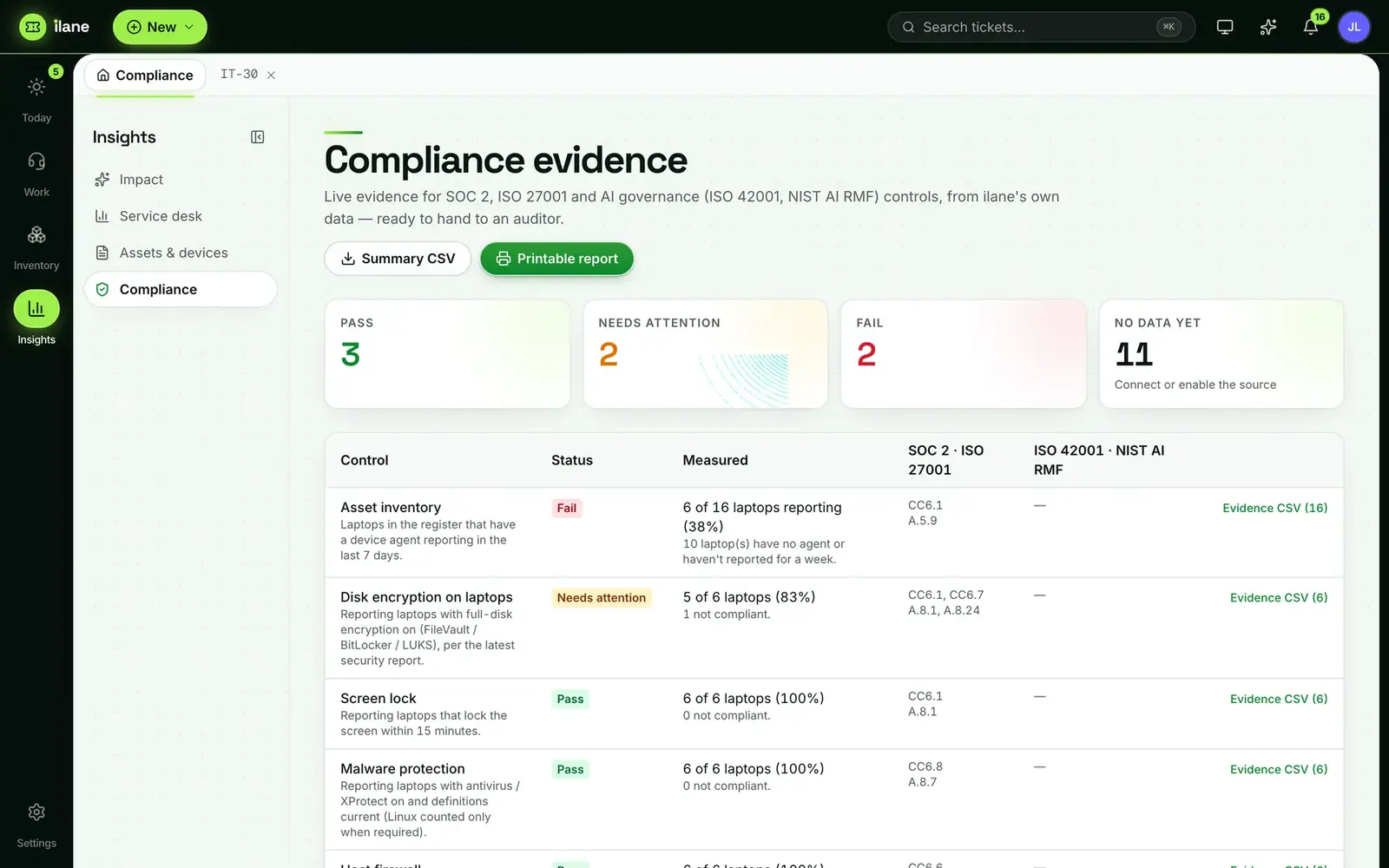
ilane’s compliance view measures controls live from devices, tickets and fixes. It maps them to SOC 2 (endpoint security: encryption, firewall, screen lock) and ISO 27001 (endpoint devices, inventory of assets, access rights). Each verified fix saves an evidence record, and the audit log is append-only and tamper-evident.
Conclusion
BYOD security comes down to four questions: who gets in, from what kind of device, what IT can see, and how data comes off. Answer each with a control people can check: per-app access, posture checked at sign-in, a published collection list, and erase rules that need two people. Personal laptops then stop being a blind spot.
If you’d like to see this on one of your own laptops, book a demo.
Frequently asked questions
Do employees have to install an agent on their personal laptop?
Posture checks need something on the device that can report encryption, firewall and patch status. In ilane, that’s the same light agent used on company laptops. Its full list of checks is published to every employee, and you can switch whole areas of collection off.
Can IT wipe my personal laptop?
That depends on the policy you agreed to. Good BYOD policies limit erasing to clearly defined cases. In ilane, erasing a laptop always needs a second approver, so one admin can’t do it alone, and every step is logged.
Is zero-trust access enough without MDM on personal devices?
For many SaaS-focused roles, yes. Signing in, checking device health and limiting access to named apps covers the main risks without taking over the device. For roles with production access or sensitive data exports, a company laptop is usually the safer choice.
What happens if a personal laptop fails a check?
The app doesn’t open until the issue is fixed, and a ticket goes to one owner. In ilane, the ticket closes only when the device’s next report shows the check passing.
Can IT view my screen without asking?
Not on laptops in ilane. Every remote help session needs the person to tap Allow on their own screen, and the session is logged on the ticket.