Managing Macs in a growing company means writing one short security policy, checking every laptop against it all day and fixing drift automatically where that’s safe. It should cover disk encryption, firewall, screen lock and OS updates. You also need a lock-then-erase process for lost devices that needs two people for the erase. Windows and Linux laptops follow the same policy.
What does managing Macs in a growing company actually involve?
It comes down to four jobs: knowing which laptops you have, setting a policy, keeping each laptop on it, and acting fast when one goes missing.
The usual story goes like this. Founders bought Macs and set them up by hand. Then Finance needed Windows and engineers chose Linux. Each new laptop was configured by whoever was around that week, and nobody owns policy across all of them. The four jobs:
- Inventory: every laptop, its owner and its operating system, kept current without a spreadsheet.
- Policy: a short list of settings every company laptop must have.
- Enforcement: checks that run all day, with an owner for every failure and fixes that run on their own.
- Loss response: lock, cut access, erase, and a record of who approved what.
Unmanaged laptops are a real risk. Verizon’s 2025 Data Breach Investigations Report looked at systems compromised by infostealer malware. Among those holding corporate logins, 46% were non-managed devices that stored both personal and business credentials. For a fuller framework, NIST’s SP 800-124 Revision 2 covers how organisations should manage and secure mobile devices centrally.
Which settings should every company Mac be checked for?
Start with four: disk encryption, firewall, screen lock and OS updates. Add app, extension and vulnerable-software checks once those four are green across the fleet.
| Setting | What “on policy” looks like | Why it matters |
|---|---|---|
| Disk encryption | FileVault on, recovery key held by the company | A lost laptop’s data stays unreadable |
| Firewall | On | Blocks unwanted incoming connections |
| Screen lock | Locks after a short idle time (for example, 5 minutes) | An unattended laptop can’t be used |
| OS updates | Latest major version, no overdue updates | Fixes known security problems |
| Blocked apps | None installed | Keeps out software you’ve ruled out |
| Browser extensions | Reviewed | Extensions can read what people see in the browser |
| Vulnerable software | No critical or high findings | Old app versions are easy to exploit |
Two points specific to Macs:
- Hold the FileVault recovery key before you need it. Apple lets a device management service require FileVault during Setup Assistant and escrow the personal recovery key, so a new Mac is encrypted before anyone uses it.
- “Updated” means the latest major macOS. Apple says that not all known security issues are addressed in previous versions of its operating systems, so a Mac on last year’s release with every patch installed can still be exposed.
For a more detailed baseline, the Center for Internet Security publishes macOS benchmarks for each major release. For how Apple’s own management framework handles enrolment, profiles and commands, see our explainer What Is Mac MDM?.
How do you manage Macs alongside Windows and Linux laptops?
Write the policy once in plain terms, check it the same way on every operating system, and send every failure to one queue with one owner.
The policy line is “disk encrypted”. The check underneath changes by platform: FileVault on a Mac, BitLocker on Windows, full-disk encryption on Linux. If you keep a separate console for each operating system, you get three versions of the truth and gaps nobody notices.
Apple has its own enrolment routes. Automated Device Enrollment is for new or erased company-owned devices and sets them up from the moment they’re unboxed. Account-driven User Enrollment is for personal devices (BYOD). Windows and Linux laptops sit outside Apple’s framework, so you also need a way to see all three platforms in one place.
ilane uses one light agent on every Mac, Windows and Linux laptop, with 42 checks out of the box. You can install it one laptop at a time, in bulk with your deployment tool, or let employees install it themselves. It runs at the lowest priority so laptops don’t slow down. It connects out to ilane over HTTPS, so you don’t open any firewall ports.
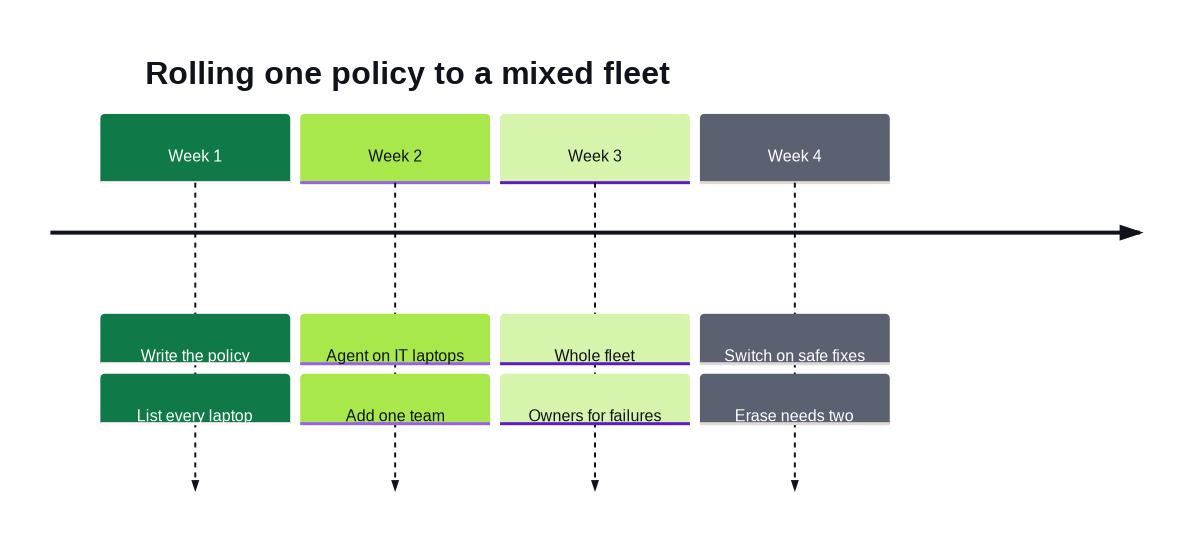
A rollout that works for a small team takes about a month. In week one, write the policy and list every laptop. In week two, put the agent on IT’s own laptops and one team, and watch the results without fixing anything yet. In week three, cover the whole fleet and give every failing check an owner. In week four, switch on the fixes you trust, and require two people for erase.
How do you keep laptops on policy without constant manual work?
Let failed checks open tickets, let safe fixes run by themselves, and close a ticket only when the next check comes back clean.
Doing this by hand doesn’t scale: someone notices a problem, messages the person, waits, then marks the ticket done without confirming anything. A better loop has three rules:
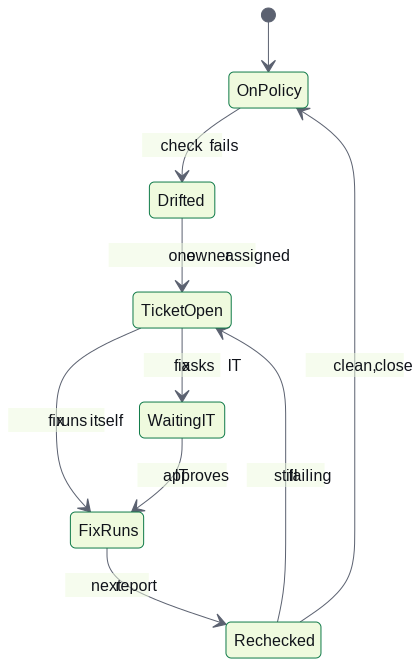
- One check, one ticket, one owner. In ilane, each failing check opens a single ticket for a single owner. You can switch any check off or exempt a specific device.
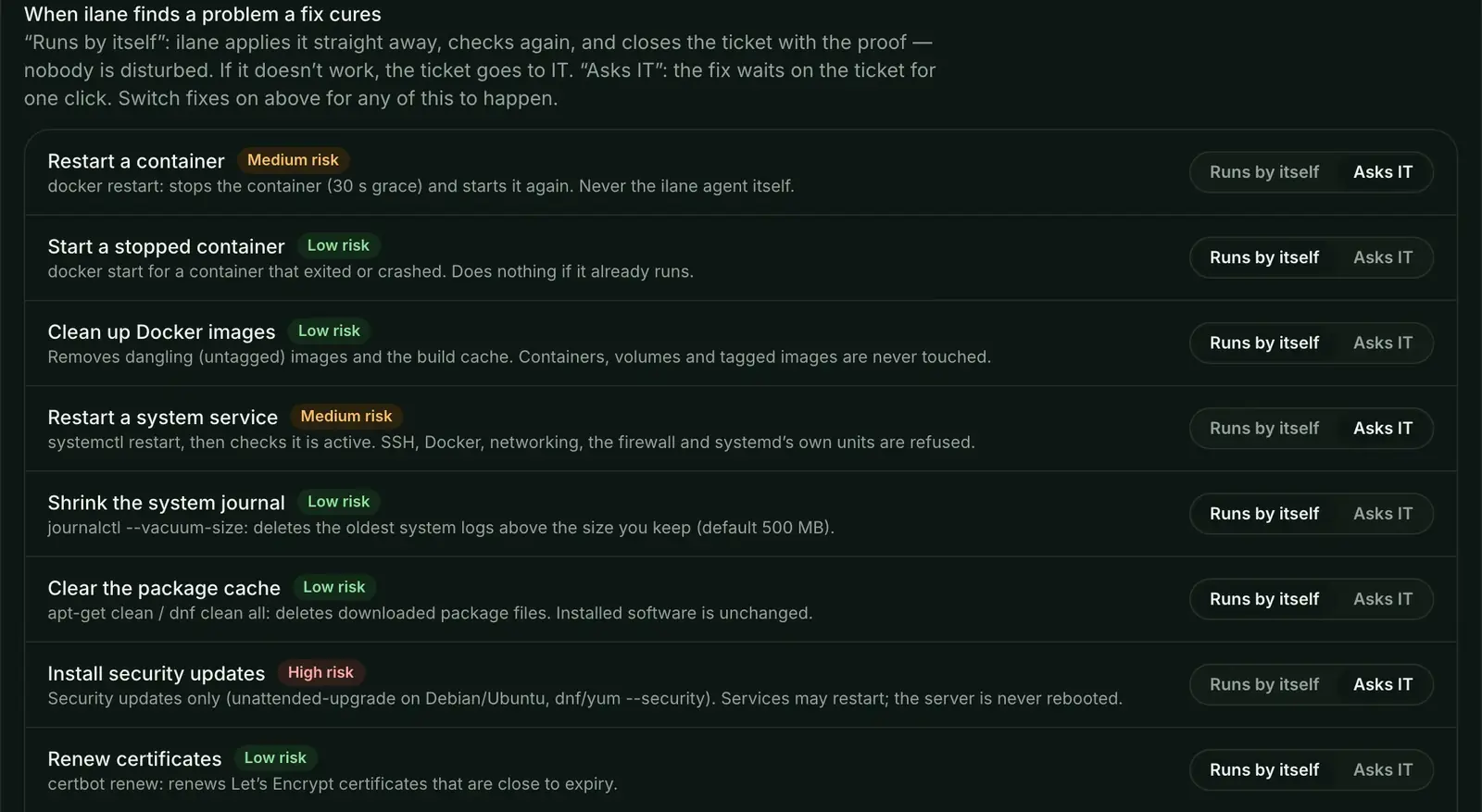
- You choose which fixes run on their own. Fixes start switched off. For each one you turn on, you decide whether it runs by itself or asks IT first. Available laptop fixes: turn on encryption, turn on the firewall, set screen lock, install updates, install, remove or update an app, block USB storage, grant temporary admin rights, lock or unlock, and erase.
- Closed means the problem is actually gone. The ticket closes when the laptop’s next report is clean. If the problem is still there, the ticket stays open with the same owner.
ilane names a built-in fix rather than sending shell commands, and records every step. Before you approve a fix you see the steps it may run, and afterwards the steps it did run. How verified resolution works explains how a fix is checked before a ticket closes.
What should happen when a Mac is lost or stolen?
Lock it at once, cut its access, confirm you hold its recovery key, and erase it only after a second person approves.
A working lost-laptop procedure:
- The employee reports it right away through the service desk, not in a chat message that gets buried.
- Lock the device. Locking can be undone and is safe to do quickly.
- Revoke sessions and access for the person’s accounts on that laptop.
- Confirm encryption and the recovery key. If FileVault was on and you hold the key, the data is protected while you decide what to do next.
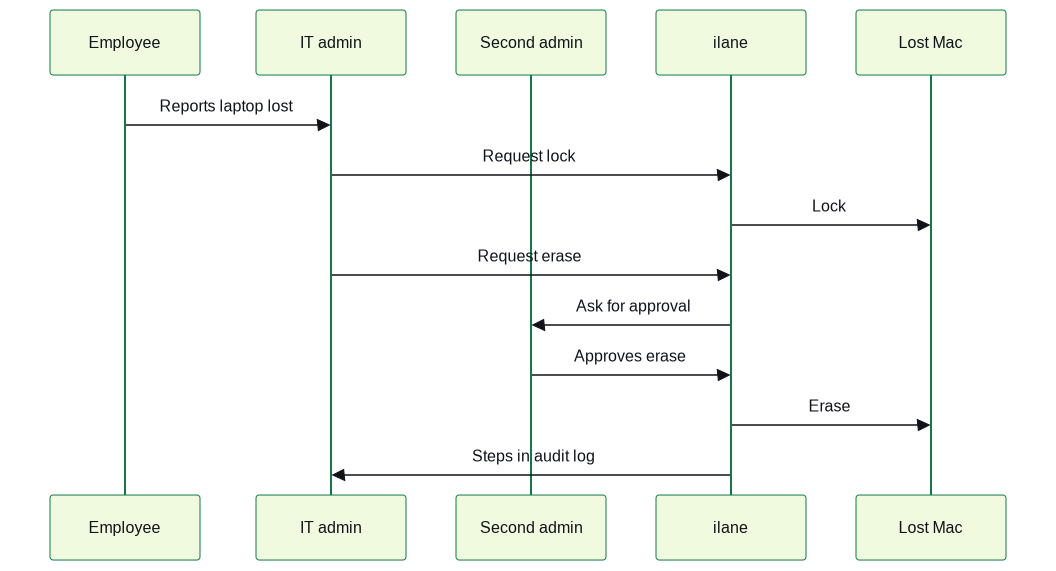
- Erase only with a second approver. Erasing can’t be undone, so one admin shouldn’t be able to do it alone.
- Record everything: who asked, who approved, and when each command ran.
On Apple’s side, the Erase Device command uses Erase All Content and Settings on Macs with Apple silicon or the T2 Security Chip running macOS 12 or later.
In ilane, locking a lost laptop takes one approval and erasing it needs a second person. Each approved request is signed, short-lived and single-use, so nobody can replay it later. Every step goes into a tamper-evident audit log that can’t be edited through the app or the database, and entries are kept for at least a year.
How do you tell employees what the device agent collects?
Publish the full list of what the agent reads, and what it never reads, before you install it, and keep that list somewhere every employee can find it.
People take device management better when nothing about it is hidden. In the UK, the Information Commissioner’s Office says employers should tell workers about monitoring before it begins. Even where that isn’t a legal requirement, it’s good practice. A short announcement should cover:
- why the company checks laptops (security and audits, not productivity tracking)
- the exact list of checks
- what is never collected
- who can see the results
- how remote help works and when it needs the person’s consent
ilane publishes its list of checks to every employee inside the product, and a public page lists what the device agent collects. The agent never collects keystrokes, screenshots, browsing history, file contents, the clipboard, location, the camera or microphone, messages or email, time spent in apps, Wi-Fi network names, AI prompts, or passwords, tokens and keys. Each company can switch whole areas of collection off. Remote help only starts after the person taps Allow on their own screen, every time.
When does a small team need a dedicated device management tool?
You need one when you can no longer say which laptops are unencrypted or out of date today without asking people.
Common signs:
- You run more than one operating system, and each has its own console or none.
- A customer security review or an audit such as SOC 2 or ISO 27001 asks for proof that laptops are encrypted.
- A laptop went missing and nobody could confirm whether it was encrypted.
- Different people set up laptops, so no two are configured the same way.
- IT is one person, or part of someone’s job, and checking settings by hand eats the week.
When you pilot a tool, test it on your own mixed fleet. Look for:
- the same checks on Mac, Windows and Linux
- fixes that are verified before a ticket closes
- a two-person rule for erase
- a list of what the agent collects that employees can read
- pricing that’s clear for your device count
ilane quotes per laptop, desktop and server running the agent. You can start with a pilot on one team and keep everything you set up when you move to a full plan.
Conclusion
Managing Macs in a growing company doesn’t take a large IT team. It takes one written policy, checks that run on every laptop whatever the operating system, fixes that are proven before tickets close, and a lost-device process where erasing needs two people. Get the four core settings green across the fleet first, tell employees exactly what the agent sees, and add more checks from there.
To see this on your own laptops, book a 30-minute ilane demo.
Frequently asked questions
Do we still need Apple Business Manager if we use a device agent?
They do different jobs. Apple’s Automated Device Enrollment sets up company-owned Macs from the moment they’re unboxed and is designed for new or erased devices. A device agent tells you whether each laptop, Mac, Windows or Linux, is on your policy right now, and opens a ticket when it isn’t.
Will a device agent slow down employees’ Macs?
It shouldn’t. The ilane agent runs at the lowest priority and is built so laptops don’t feel slower. It also updates itself, so new checks arrive without anyone touching a laptop.
Can employees install the agent themselves?
Yes. ilane supports three install methods: IT installs it one laptop at a time, IT pushes it in bulk with a deployment tool, or employees install it themselves. The agent connects out over HTTPS, so no firewall ports need opening.
What happens if an automatic fix doesn’t work?
The ticket doesn’t close. ilane closes a check-raised ticket only when the laptop’s next report shows the problem is gone. If the check still fails, the ticket stays open with the same owner, and the steps that ran are on record.
How is ilane priced for a mixed fleet?
ilane quotes for each team based on how many laptops, desktops and servers run the agent. You can start with a pilot on one team and keep what you set up when you move to a full plan. Book a demo to get a quote.