Few IT service desk tools fix problems on their own. Most of them spot an issue, open a ticket and send it to a person. A tool that really fixes things runs an agent on each laptop and server and applies fixes you have approved in advance, such as turning a firewall back on. It then checks the device again and closes the ticket only if that check passes.
This guide explains how to tell real auto-remediation apart from tools that just turn alerts into tickets. It covers which fixes are safe to run without a person, how to test vendor claims in a trial, and how to roll out auto-fixes without causing an outage.
What does self-healing IT mean in practice?
In self-healing IT, a tool finds a known problem, applies a known fix without waiting for a person, and then confirms the problem is gone.
All three parts have to be there:
- Detect. A check runs on a schedule against a device, server or cloud account. For example: is disk encryption on, is the disk under 90% full, is the firewall enabled?
- Act. The tool runs a built-in fix that you have approved for this kind of problem.
- Verify. The tool checks the device again on its own and records whether the fix worked.
If a tool skips step 2, it is a monitor. If it skips step 3, it is a script runner that assumes everything went well.
The case for automating this work is mostly about doing it the same way every time. Uptime Institute’s 2025 outage analysis found that nearly 40% of organisations had a major outage caused by human error in the past three years. In 85% of those cases, staff didn’t follow procedures or the procedures themselves were flawed. A built-in fix runs the same steps every time. The downside is that it will also repeat a bad step everywhere, which is why the limits and rollout sections below matter.
What is the difference between a tool that alerts and one that fixes?
A tool that alerts tells a person something is wrong. A tool that fixes changes the system itself and then proves the change worked.
Vendors often blur the two. “Automated workflows” can mean anything from assigning a ticket to a team to actually changing a setting on a laptop. Use this table to sort them:
| Question | Alert-to-ticket routing | Real auto-remediation |
|---|---|---|
| What happens when a check fails? | A ticket is created and assigned | A pre-approved fix runs on the device |
| Who changes the system? | A technician | The tool, within the limits you set |
| Where do fixes come from? | Scripts your team writes and maintains | Built-in, named fixes that ship with the product |
| When does the ticket close? | When someone clicks Resolve | When the tool’s own check passes again |
| What evidence is kept? | Comments, if anyone wrote them | Before and after readings, the steps that ran, and who approved them |
Watch for these warning signs on product pages and in demos:
- The “fix” is a notification to Slack or Teams.
- Automation means a script library you upload and own.
- Tickets close on a timer or when someone clicks, with no check of the device afterwards.
- There is no way to see what a fix will run before you approve it.
Which kinds of fixes can run unattended, and which need a person?
Small fixes that are easy to undo can run without a person. Anything that destroys data, affects many systems or is hard to reverse should wait for a person, and the most serious actions should need two.
Use four questions to judge each fix:
- Can you undo it? Turning a firewall back on is easy to reverse. Erasing a disk is not.
- How far does it reach? A setting on one laptop is very different from restarting a service other systems depend on.
- Is the result predictable? Setting a screen lock always ends the same way. Installing OS updates can restart the device or break an app.
- Can you measure it? If there is no clear condition the tool can check afterwards, it can’t verify the fix.
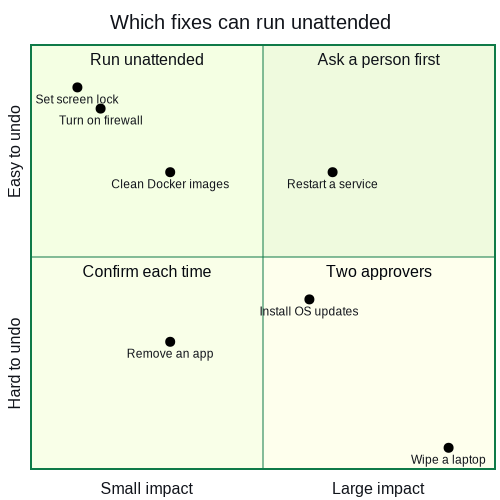
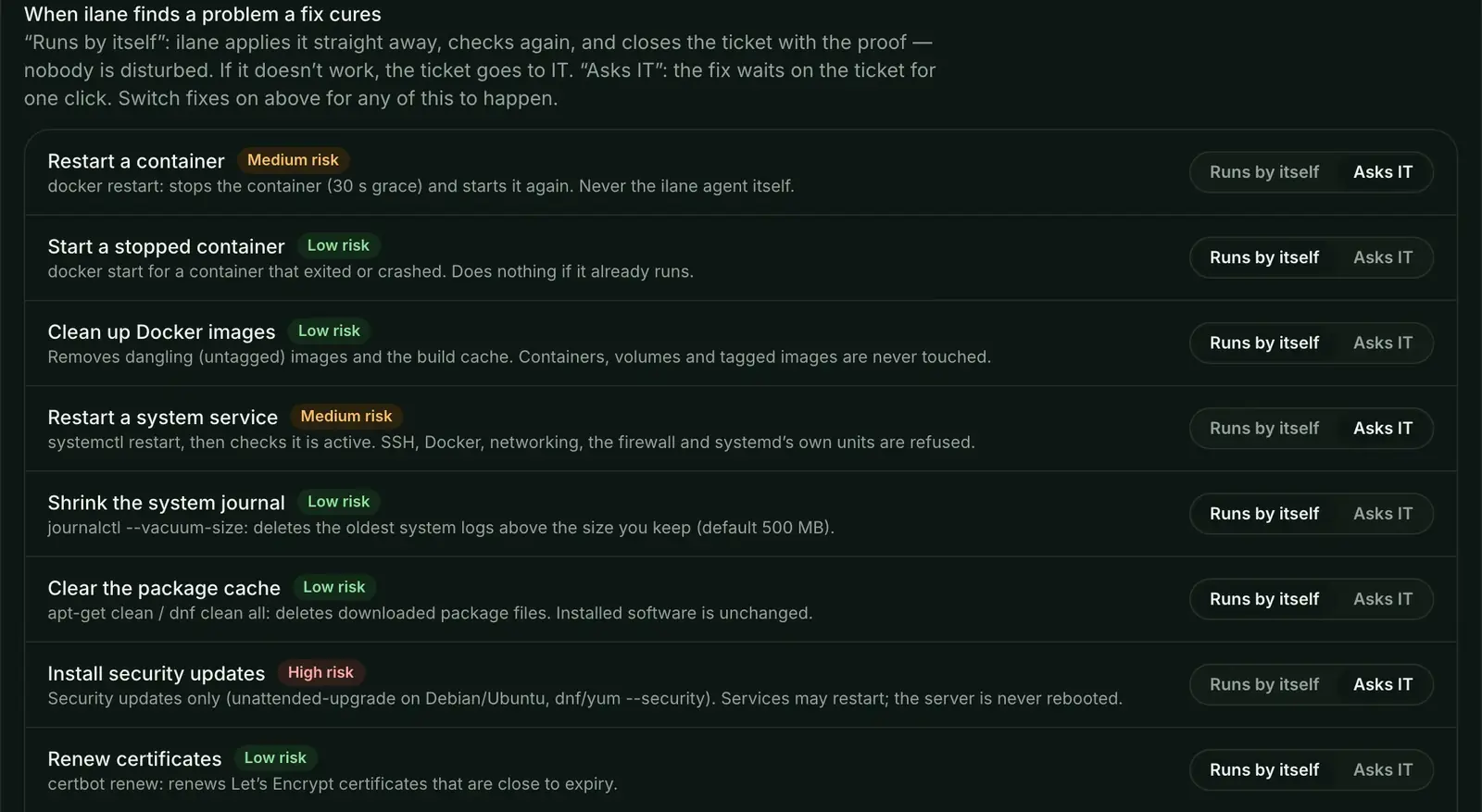
Here is how ilane handles this. Per its security page, every fix starts switched off for every company. An admin turns fixes on, and policy sets each one to either “runs by itself” or “asks IT”. Anything that changes a system shows a confirmation card first. Serious actions such as wiping a laptop need a second approver. On the devices page, the laptop fixes you can switch on include turning on encryption and the firewall, setting the screen lock, installing updates, blocking USB storage and granting temporary admin rights. Locking a lost laptop takes one approval. Erasing it takes two people.
How does a tool confirm a fix worked before closing a ticket?
The tool decides what “fixed” means when the ticket opens, checks the system again with its own reading after the fix, and closes the ticket only if the reading matches. If it doesn’t match, the same ticket reopens.
When you evaluate a tool, look for these four steps:
- A definition of fixed up front. “Disk usage below 90%” or “FileVault on” is something the tool can check. “User says it’s OK” is not.
- A separate re-check. The tool reads the device again after the fix. It does not trust the fix script’s exit code.
- Reopen, don’t duplicate. If the problem comes back or the fix failed, the original ticket reopens with its history. A new ticket would hide the failure.
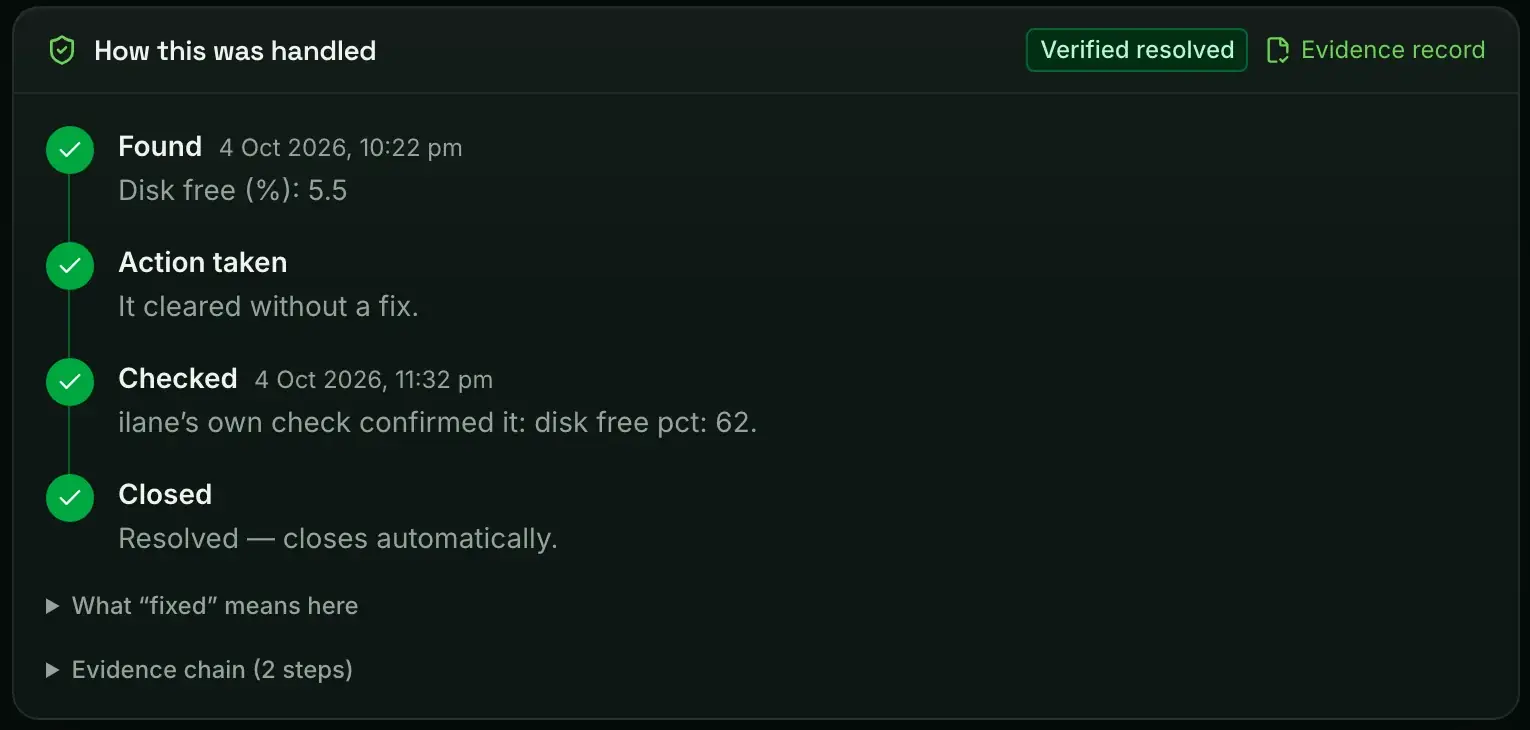
- Saved evidence. The record shows the readings before and after, every step that ran and who approved it.
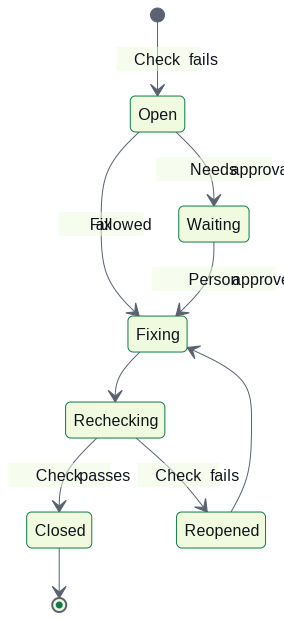
In ilane, every ticket raised by a check carries a definition of what “fixed” means. Each device check opens one ticket for one owner and closes it when the next report comes back clean. Before you approve a fix, you see the steps it may run. Afterwards, you see the steps it actually ran, and you can export them for an audit. How verified resolution works walks through the full cycle, and our guide on verifying an IT ticket is fixed before it closes covers the method for any tool.
What should you test in a trial to check auto-remediation claims?
Break things on purpose on test devices, then watch what the tool does without your help.
Run these tests on a spare laptop and a non-production server:
- Turn off the firewall or disk encryption. Does a ticket open with the device and person attached? Does the fix run, and how long does the whole cycle take?
- Fill a server disk. Does a cleanup fix run, and does the ticket close only after disk usage drops?
- Make the fix fail. Block the change, or switch the setting off again right after the fix. The ticket should reopen, not stay closed.
- Close a ticket by hand while the problem is still there. A tool that checks its own work should reopen it at the next check.
- Ask for a destructive action. A wipe should need approval, ideally from two people, and should never run from a free-form shell command.
- Read the evidence record. Can you export the before and after readings, the steps that ran and who approved them?
- Check the defaults. Are fixes off until you turn them on? Can you exempt a single device?
- Turn AI off. If the vendor uses AI for triage, the fix rules should still work without it.
Also ask the vendor which fixes are built in and which are scripts you would have to write and maintain yourself. Run the trial on one team’s real devices rather than a demo environment. ilane, for example, offers a pilot on one team, and you keep the setup when you move to a full plan.
What are the limits of automated fixes?
Auto-fixes handle narrow problems that are already known. They can’t diagnose new failures, fix what the agent can’t reach, or make business trade-offs.
Be realistic about these gaps:
- New problems. A fix only exists for failure modes someone has already written up. A new kind of crash still needs a person.
- Read-only areas. Many tools connect to cloud accounts and code repositories with read-only access. That’s the safer design, but it means findings there become tickets for people, not automatic fixes.
- Changes users will notice. An update that restarts a laptop in the middle of a client call is technically fixed and practically a problem.
- Mistakes multiply. Automation repeats a bad change as reliably as a good one. In July 2024, one faulty CrowdStrike content update crashed about 8.5 million Windows systems. Google’s SRE book makes the same point in its chapter on automation: automating without thinking it through can cause as many problems as it solves.
- Judgement calls. Whether to accept a risk, retire a server or erase a laptop is a decision for a person. AI can explain and suggest. Rules you set should decide what runs.
How do you roll out auto-fixes without causing outages?
Start with every fix switched off. Turn on one low-risk fix for a small group, check the verified results, then widen the rollout in stages.
This is how large vendors ship changes too. After its 2024 incident, CrowdStrike committed in its post-incident review to a staged rollout that starts with a canary deployment to a small group of systems. Microsoft’s Windows Autopatch puts devices into deployment rings, including a Test ring and a Last ring. NIST’s patching guidance, SP 800-40 Rev. 4, treats patching as preventive maintenance. It recommends that business owners and technology teams agree the strategy together, and the same applies to deciding which fixes run without a person.
A practical plan for a company with 50 to 1,000 people:
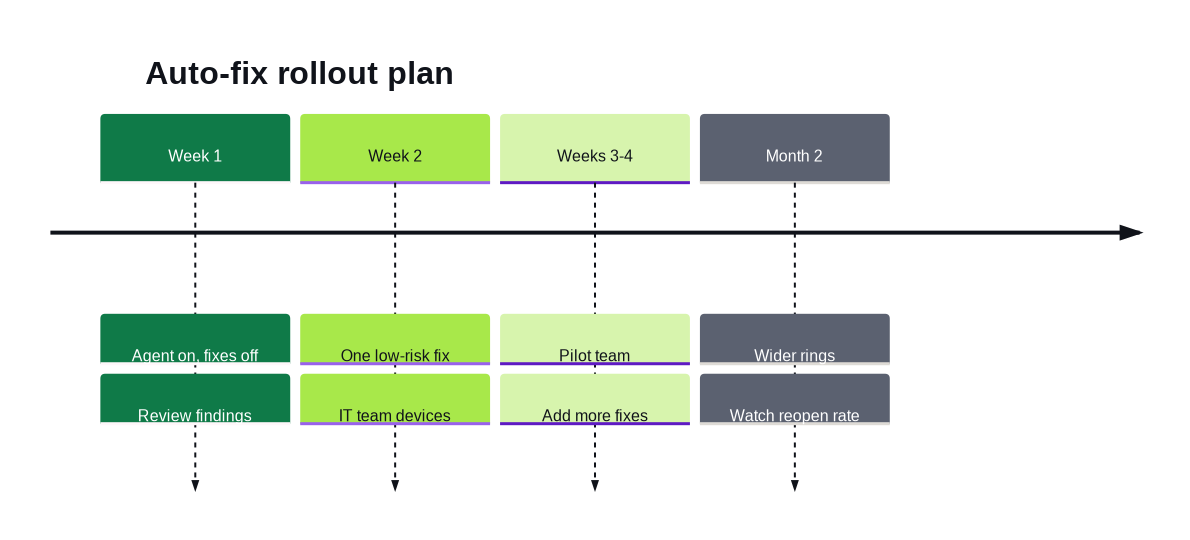
- Week 1: Install the agent with every fix off. Read the findings so you know your starting point.
- Week 2: Turn on one fix that is easy to undo, such as screen lock or firewall, for IT’s own devices only.
- Weeks 3–4: Extend it to a pilot team. Add encryption and server disk cleanup. Keep updates and service restarts set to “asks IT”.
- Month 2 onwards: Widen in rings. If a fix’s tickets keep reopening or users complain, switch that fix back to “asks IT” and find out why.
Keep two rules for good: wipes need two people, and no fix is ever a free-form shell command.
Conclusion
To judge whether a tool really fixes problems, check three things. It should run built-in fixes you have approved, check the device again on its own, and reopen the ticket when a fix doesn’t hold. Many tools stop at turning alerts into tickets. Test the claims by breaking things on purpose during a trial. Keep destructive actions behind human approval, and roll out fixes in stages.
To see ilane find a problem, fix it and confirm the fix on a real laptop, book a demo.
Frequently asked questions
Is self-healing IT the same as AIOps?
Not quite. AIOps usually means using AI to correlate alerts and suggest causes. Self-healing means a tool runs an approved fix and confirms it worked. The safest designs let AI explain and suggest, while rules you set decide which fixes run.
Can auto-remediation replace an IT team?
No. Auto-fixes handle repetitive, known problems such as a firewall being switched off or a disk filling up. New failures, business trade-offs and destructive actions like wiping a laptop still need people. What changes is that people spend less time on routine fixes and more on decisions.
Do verified auto-fixes help with SOC 2 or ISO 27001 audits?
They can, if the tool keeps a record of each fix: the readings before and after, the steps that ran and who approved them. In ilane, each verified fix becomes an evidence record mapped to controls in frameworks such as SOC 2 and ISO 27001. Your auditor still decides what counts as enough evidence.
Do I need both MDM and RMM to get automatic fixes?
MDM covers laptop settings such as encryption and screen lock, and RMM covers monitoring and fixing servers and endpoints. Many growing companies need both jobs done. Some platforms run one agent across laptops and servers, so check whether a tool covers both before buying two.