Shadow IT is any software, cloud service or device that staff use for work without IT knowing about it or approving it: a free SaaS sign-up, a browser extension, a paid app bought on a personal card. You find it by checking three things: what is installed on laptops, what is connected to company accounts, and what the company is paying for.
What is shadow IT, in plain terms?
Shadow IT is technology your company relies on that is missing from IT’s inventory, so nobody owns it, secures it or offboards it.
Most of it isn’t malicious. A designer installs a font manager, a sales lead connects a meeting-notes app to their calendar, or a team expenses a project tool because the approved one was slow to arrive. The risk is not the app itself. The risk is that company data now sits somewhere with no owner, no access review and no exit plan when the person leaves.
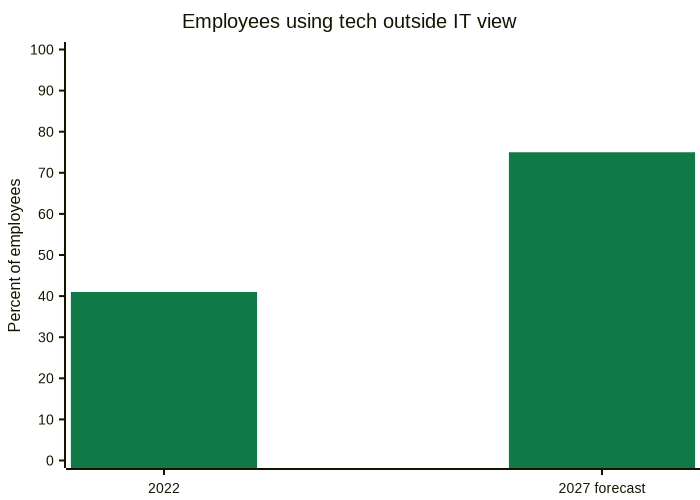
It’s also growing. Gartner predicted that by 2027, 75% of employees will acquire, modify or create technology outside IT’s visibility, up from 41% in 2022. Security frameworks treat a complete inventory as the starting point: NIST CSF 2.0 includes the outcome that inventories of software, services and systems managed by the organization are maintained (ID.AM-02).
How is shadow IT different from shadow AI?
Shadow AI is a part of shadow IT: unapproved AI tools, assistants, coding agents and models. It needs its own controls because the data leaves through prompts and agent actions, not just through file uploads.
Shadow AI is spreading fast. Microsoft’s 2024 Work Trend Index found that 78% of AI users bring their own AI tools to work. What makes it different:
- Prompts carry data. Code, customer records or contracts pasted into a chat window never show up as a file transfer.
- Agents act on their own. Coding agents and MCP servers can read files and call other tools from the laptop they run on.
- Local models hide well. A model running on a laptop sends no SaaS traffic and leaves no invoice.
The detection methods below cover both. For the AI-specific policy work, see what AI governance means in practice and how to govern MCP servers.
Where does shadow IT show up in a 50–1,000 person company?
It turns up in four places: laptops, browsers, company sign-ins and spending. Each one needs a different source of data.
At this size the scale is bigger than most IT managers expect. One analysis of BetterCloud’s 2025 State of SaaS survey reports that the average organization runs 106 SaaS applications.
| Where it hides | Typical example | Where to look | What it tells you |
|---|---|---|---|
| Installed apps | Unapproved file-sync client, AI desktop app | Device agent inventory | App, version, which laptop and person |
| Browser extensions | Grammar checker, screen recorder, AI sidebar | Device agent or browser management | Extension and what it can read |
| Company sign-ins | “Sign in with Google” to a new SaaS tool | Identity provider’s third-party app list | App, user, permissions granted |
| Spending | Project tool on a personal or team card | Expense reports, card statements, invoices | Vendor, cost, who pays |
| Unseated paid apps | Licensed design app installed without a seat | Device inventory matched to licence register | Compliance and cost exposure |
How do you detect unapproved apps on laptops?
Run a light agent on every laptop that reports installed apps and browser extensions, then compare that list against your approved list.
Steps that work without a long audit:
- Deploy the agent everywhere first. Coverage matters more than depth. A laptop without the agent is a blind spot.
- Pull the full app and extension list. Sort by the number of devices. One app on 40 laptops is a de facto standard you need to decide on. One app on a single laptop can wait.
- Check versions against known vulnerabilities. An unapproved app is a bigger problem when it is also out of date.
- Mark each app approved, tolerated or blocked (more on this below).
The ilane device agent runs on Mac, Windows and Linux laptops. Its checks include browser extensions to review, blocked apps, and installed apps matched against known vulnerabilities. It also finds AI apps, coding agents, MCP servers and local models. Every employee can read the published list of what it checks, and it never collects browsing history, keystrokes or screenshots.
One consequence of that design: SaaS used only in a browser tab, with nothing installed, doesn’t show up on the laptop. You find those through sign-ins and spending.
How do you spot unused or unseated paid apps?
Match the apps installed on each device against your licence register. Anything installed without a seat is either shadow IT or a licence gap, and seats nobody opens are waste.
Look for two mismatches:
- Installed without a seat. Someone installed a paid app the company never bought a licence for. That can be a licence compliance problem, and it often means the team needs the tool but didn’t ask.
- Seat without use. You pay for seats that haven’t been opened in months. A 60-day idle threshold is a practical place to start.
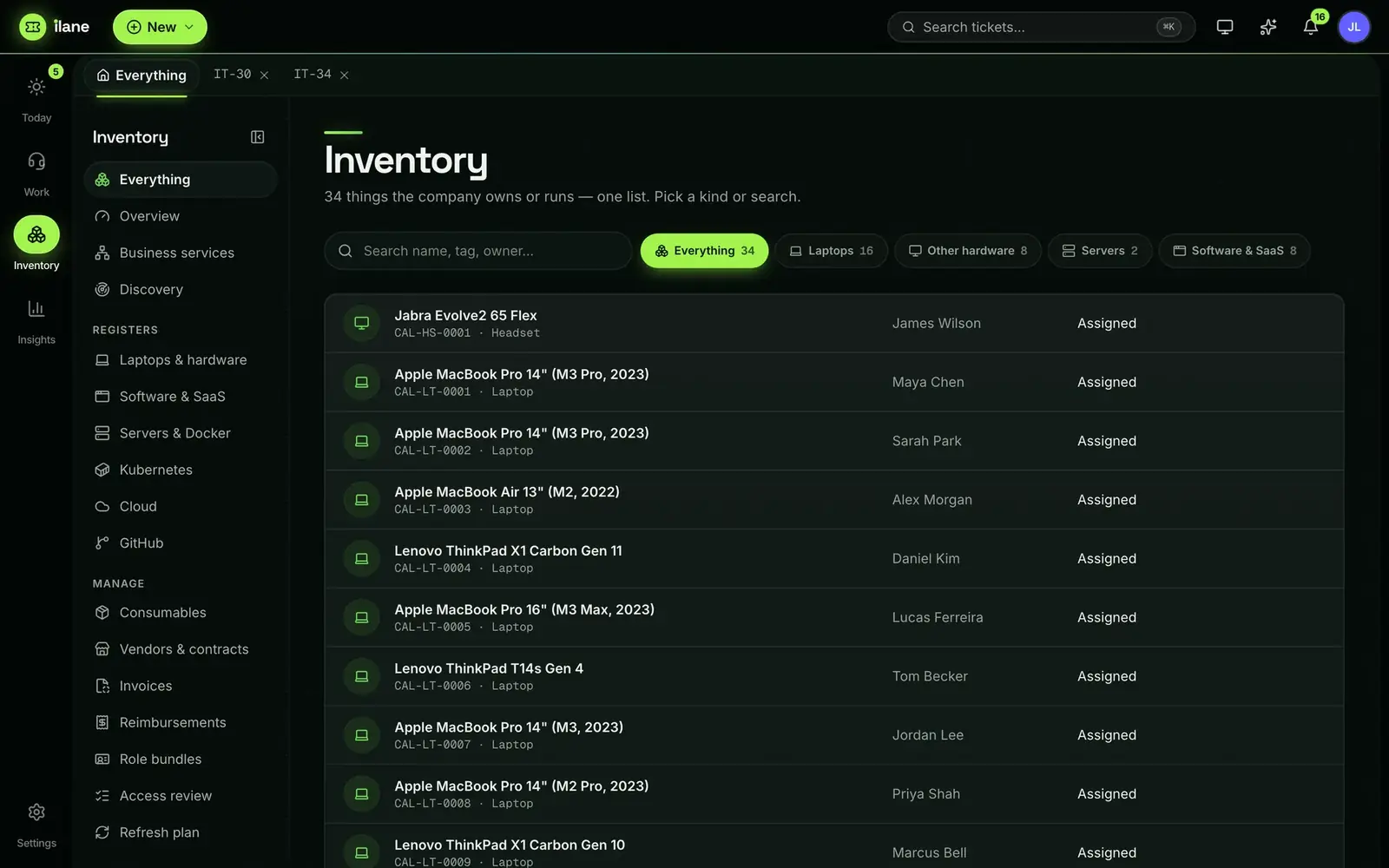
In the ilane assets and licences register, paid apps installed without a seat are flagged, and seats unused for 60+ days can be taken back in one step. Renewals come with a reminder ticket, early enough to decide whether to keep the tool, cut seats or replace it.
How do you find SaaS sign-ups that bypass IT, like personal accounts?
Check the third-party apps connected to your identity provider, then compare spend data against your vendor list. Between them, the two catch most web-only tools.
- OAuth grants. When someone clicks “Sign in with Google” or “Sign in with Microsoft”, the app shows up in your identity provider’s list of connected apps. Google Workspace admins can limit third-party app access to specific OAuth scopes, such as Drive or Gmail. Start with any app that has mail or file access.
- Expense and card data. Ask finance for a 12-month export of software vendors. Recurring charges from vendors that aren’t in your register are shadow IT you’re already paying for.
- Network discovery (larger fleets). Cloud access security tools analyse traffic logs. Microsoft’s Defender for Cloud Apps, for example, uses cloud discovery to see which apps are used and how risky they are.
- Ask people. A short “what do you use that IT doesn’t know about?” form, sent with a promise of no blame, finds tools that no log will show.
Personal accounts on personal email are the hardest case. If someone signs up with a Gmail address and never connects it to company systems, the only signals are spend, what’s on the device, or the person telling you. ilane connects read-only to Google Workspace, and its security features include flagging risky third-party apps and listing signed-in AI accounts.
What should you do with an app you find: approve, tolerate or block?
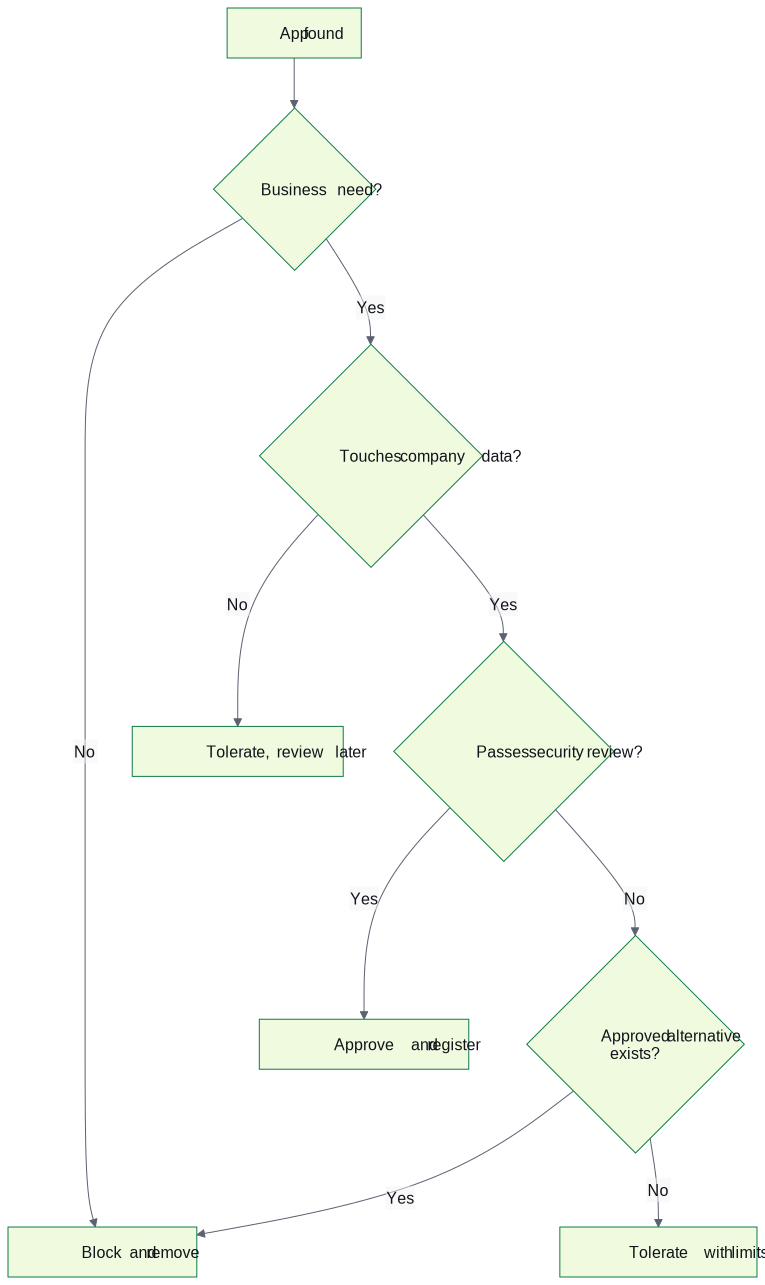
Sort every app into one of three outcomes based on business need, data access and security review. Then give each finding one owner.
- Approve: there’s a real need, the app passes your security review, and it goes into the register with an owner, seats and a renewal date.
- Tolerate: it’s low risk and doesn’t touch company data, or there’s no approved alternative yet. Allow it for now and review it later.
- Block: there’s no business need, it failed review, or an approved tool already does the job. Remove it and point people to the alternative.
Blocking only works if it’s checked. In ilane, AI tools are marked approved, tolerated or blocked, and a blocked one opens a ticket. Device checks close their ticket only when the next report from the laptop is clean, so “removed” means the app is actually gone, not that someone said so.
How do you keep the list current after the first audit?
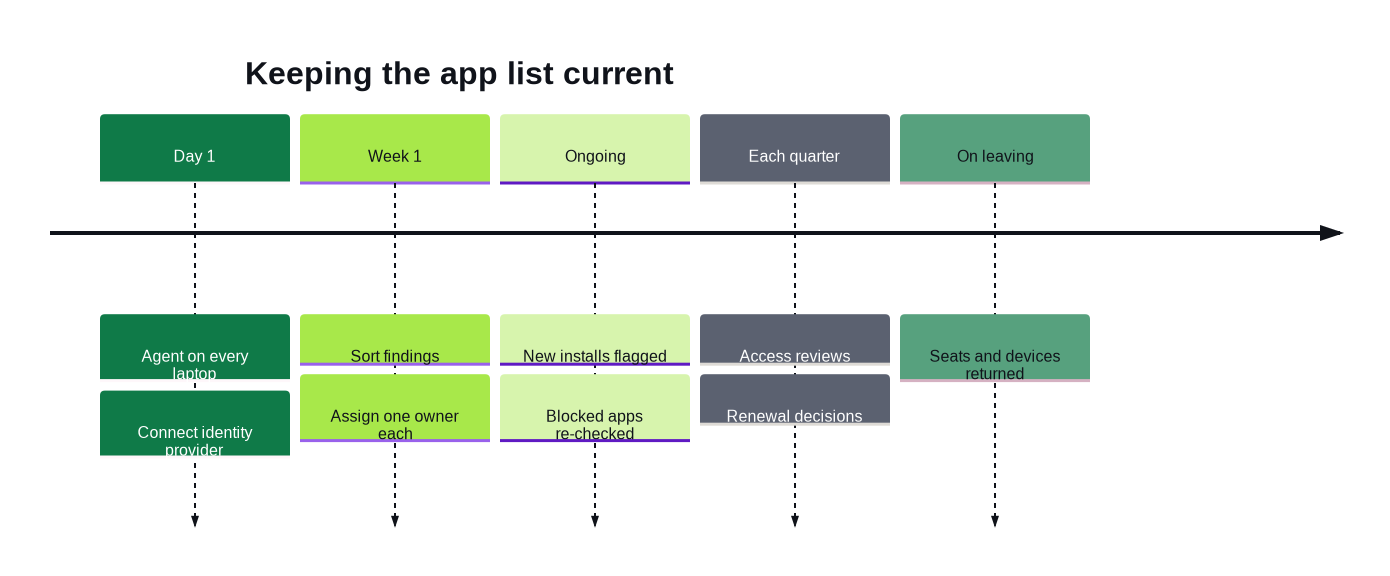
Turn detection into a continuous check rather than a yearly project: new installs raise findings as they appear, and reviews and offboarding run on a schedule.
What to keep running:
- Daily device reports. New apps and extensions appear as findings, not surprises at audit time.
- Quarterly access reviews. Who has which software comes up for review. ilane raises these as tickets each quarter.
- Renewal decisions. Every renewal is a chance to cut idle seats or retire a tool.
- Offboarding. Seats and devices come back when someone leaves, including AI vendor access.
- A tracked control. ilane’s compliance view includes an “AI tools under policy” percentage, mapped to ISO 42001.
Conclusion
Shadow IT is mostly people solving real problems with tools IT never saw. To find it, check three places: the laptop (installed apps and extensions), company sign-ins (OAuth grants) and spending (invoices and expense data). Sort each finding into approve, tolerate or block, give it an owner, and confirm that removals actually happened. Then keep the checks running so the list stays accurate between audits.
To see how ilane finds unapproved apps, unseated licences and AI tools on your own laptops, book a demo.
Frequently asked questions
Is shadow IT always a security risk?
No. Much of it is low-risk software people use to get work done, and some of it should become your standard tool. The risk comes from tools that hold company data with no owner, no access review and no offboarding. Sorting apps into approve, tolerate or block puts your effort where the real exposure is.
Can you detect shadow IT without installing an agent on laptops?
Partly. Identity provider app lists, expense data and network-log tools catch SaaS that people sign into or pay for. They miss locally installed apps, browser extensions and local AI models, which only a device agent or browser management can see.
Do we need to tell employees that we check installed apps?
In many places, yes. Rules on employee monitoring vary by country, so check with your legal adviser. Telling people plainly what is checked builds trust either way. ilane publishes the full list of agent checks to every employee, and the agent never collects browsing history, keystrokes, screenshots or file contents.
How often should we review the app list?
Treat new installs as they appear and run a full review every quarter, ideally alongside access reviews. Also review at each renewal and whenever someone leaves. That cadence keeps the list current without another large audit.
What should we do when a whole team depends on an unapproved tool?
Don’t block it overnight. Run it through the same security review as any new purchase. If it passes, approve it and move it onto company billing with an owner. If it fails, agree an approved alternative and a migration date before you block it.